
VR sells at a higher price than flat video — and three things cannot be fixed after the shoot: the wrong format, the wrong camera height, and never having watched your own clip in a headset. Everything else on this page is detail.
Short version with pictures: How to record in VR.
1. The format: VR180, two eyes side by side
We sell VR180 only: the two eye pictures side by side, left eye on the left — the picture every VR camera makes by default, about twice as wide as it is tall. No 360° videos, no pictures one above the other, no round lens pictures. A wrong file shows no error — it just looks wrong in the headset, and the buyer blames you.
Which camera? Two lenses side by side, recording VR180 at 5760×2880 or more, 30 frames per second, from a tripod. Our pick under 1,000 €: the SLAM XCAM 2026 (8K, and it streams live by itself). Cheaper: CALF × VISINSE (8K, smaller sensor). Cheapest way in: VR.cam 02, a USB camera for OBS — good enough to try live, too soft to sell clips. A 360° camera or a phone does not make VR180.
2. Height, distance, light and sound
- Camera height: the camera is the viewer’s head. Standing scene 1.60 m, sitting or kneeling 1.20 m — measure the lens. Keep the camera dead level and never move it during a take.
- Distance: 40 cm to 1.5 m from the lens. Closer hurts the eyes, farther loses the depth. Eye contact with the lens is your strongest tool.
- Light from behind the camera, not behind you. Sound matters more than in flat video — a cheap microphone near the scene beats the camera’s own. Shoot clean first, dirty second.
3. Upload, trailer, and what not to put on the picture
- Tick “This is a VR clip” before you upload the file. Ticking it afterwards does not change a file that is already uploaded — you would have to upload it again. The VR category is added by itself.
- The trailer is required and becomes the free VR teaser — the thing buyers watch in their own headset before they pay. 15 to 30 seconds, same height and distance as the clip.
- Never put a logo, watermark or text on a VR picture — it lands in one eye only and makes people take the headset off. No zooms, no transitions that move the whole picture. Shoot the highest resolution your camera offers; 8K takes about an hour of processing per 20 minutes, so upload early.
4. Watch your clip in a headset before you publish
Everything can look perfect on a monitor and be wrong in a headset. In the VR hub your unpublished clips sit under their own Drafts tab, which only you see — a draft plays there in full. Five minutes there teach you more than this whole page.
5. Your VR tab in the Store Manager
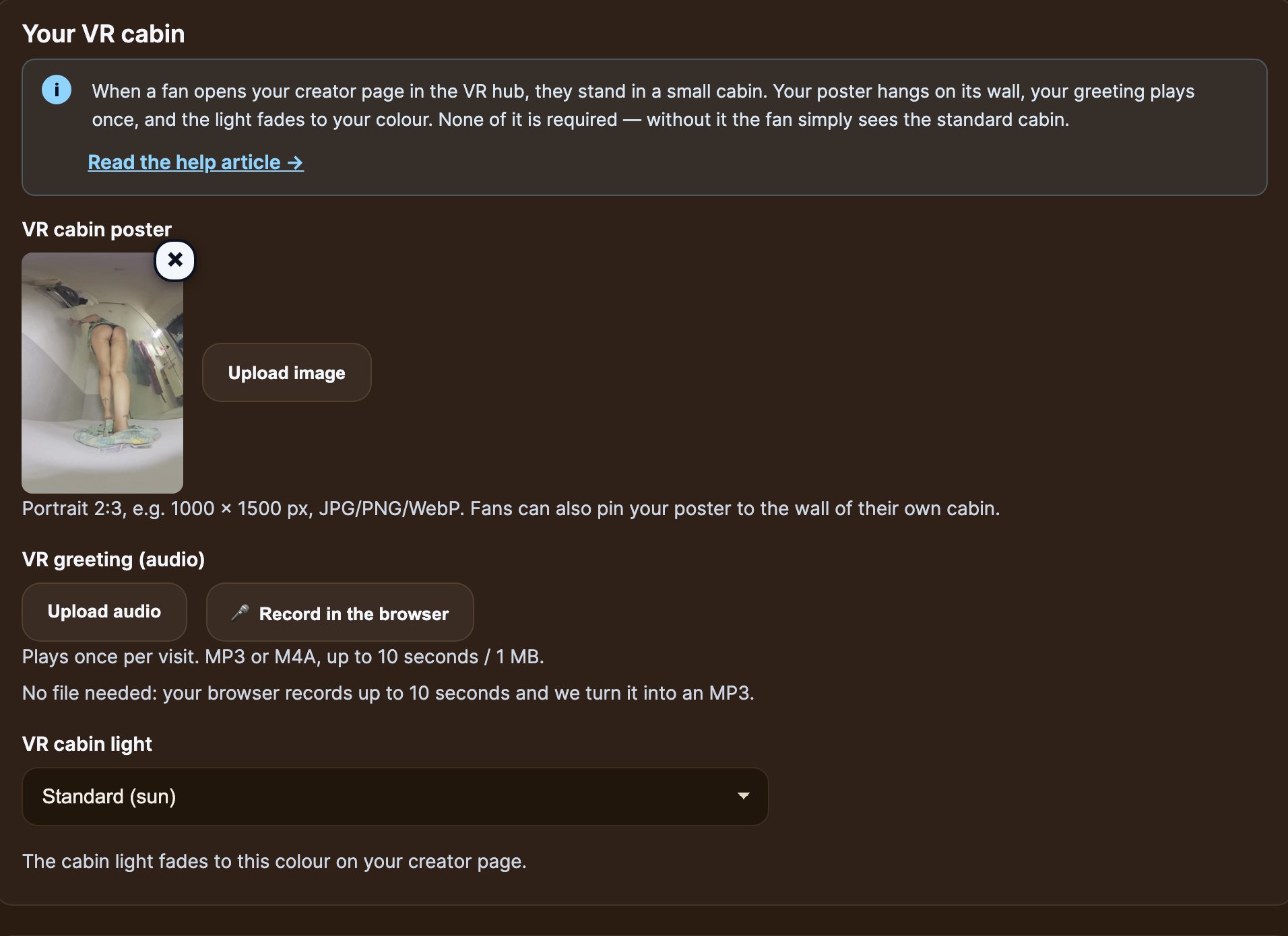
- VR poster (portrait, for example 1000 × 1500 px) hangs on the wall of your room in the hub; fans can pin it in their own room. VR greeting: up to 10 seconds of audio, played once when a fan enters — record it right in the browser. VR light: the colour of the lamp in your room.
- Fan items: fans can buy your fan sticker and fan poster for their own room (you set the price, 10 to 500 tokens). Top fans wall: six places above your poster that fans buy for 30 days. VR requests: a signed poster or a personal voice greeting — you have 7 days to deliver. VR series: group 3 to 12 clips; a fan who owns them all gets a trophy with your name. You get your usual tip share of every sale.
6. Premieres, toy scripts and moments
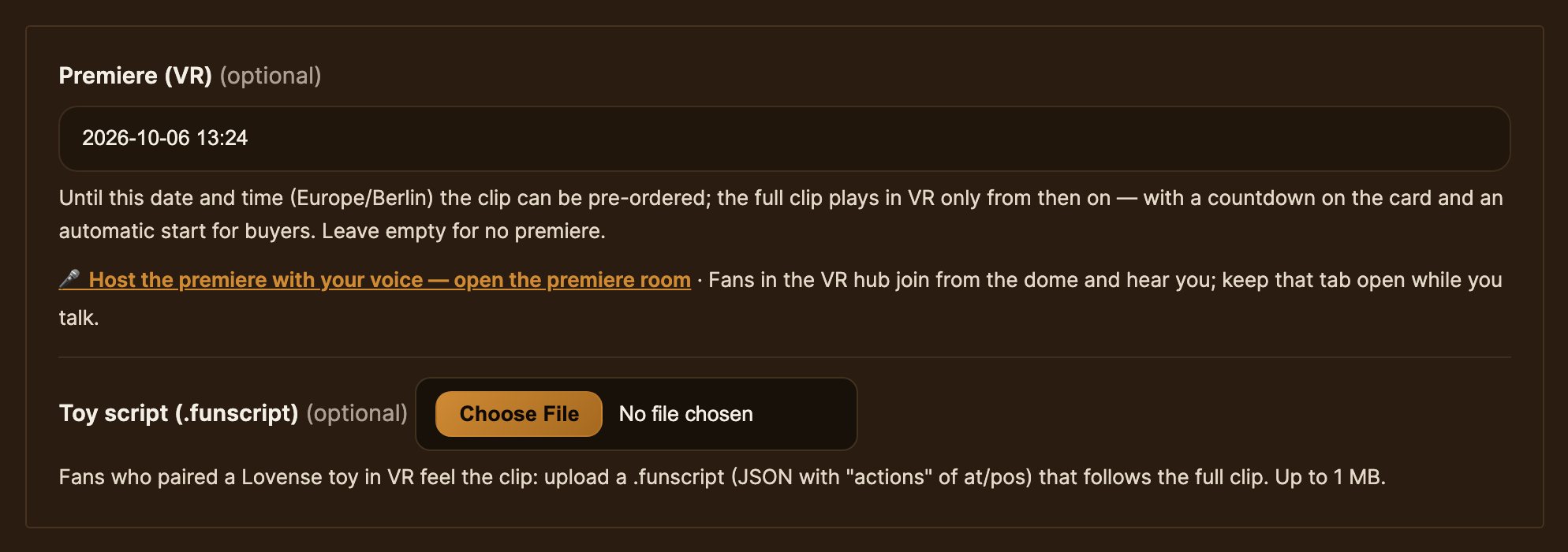
- Premiere: set a date and time in the clip form. Until then the clip can be pre-ordered; at that moment it starts by itself for everyone waiting in the hub. The link under the field opens the premiere room on your computer: press Go live, allow the microphone, and fans in the hub hear you and write in the chat. Keep the tab open while you talk.
- Toy script: upload a .funscript file timed to the full clip, and a fan’s paired Lovense toy follows the clip in the hub. Moments: under Store Manager → VR you allow or forbid fans to cut 15-second pieces of your clips to share — every moment carries your name and a link back to the clip.
Your 2D clips are in the hub as well, and fans can read and answer your chat messages there — you keep writing in the Store Manager as always. Your price, your commission and your payout are the same as for a flat clip.